How to Fix PlayStation Portal Stutter and Lag
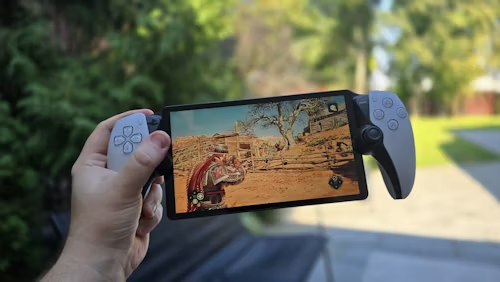
The "Microstutter" Problem
The PS Portal requires a stable 15Mbps stream for 1080p performance. However, even with gigabit fiber, users often experience "microstutter." This is usually caused by local network congestion or the PS5 attempting to maintain a 120Hz handshake with a sleeping TV while simultaneously encoding the remote stream. For **PS5 Pro** users, the extra processing power helps, but network bottlenecks remain the primary culprit in 2026.
| Connection Type | Stability | Recommended For |
|---|---|---|
| Cat8 Wired | Elite (0% Packet Loss) | Competitive Online Play |
| Wi-Fi 6E / 7 (6GHz) | High | Single Player / RPGs |
| Wi-Fi 5 (5GHz) | Moderate | Casual Play (Near Router) |
| Wi-Fi 2.4GHz | Poor (High Jitter) | Not Recommended |
The Gold Standard: Remote play stability is 90% dependent on the host connection. If your PS5 isn't hardwired, you will experience dropped frames. See our Connection Guide for high-shielded Ethernet cables that eliminate packet loss.
Step-by-Step Instructions
- Hardwire the Host: Connect your PS5 to your router via a Cat6 or Cat7 Ethernet cable. Never stream from a PS5 that is on Wi-Fi if you want a professional-grade experience.
- The HDMI Hack: A common 2026 technical conflict involves the TV's HDMI handshake causing periodic stutters. Unplug the HDMI cable from the back of the PS5 during long Portal sessions to force the console's encoder to focus entirely on the stream.
- Force 5GHz/6GHz: In your router settings, lock your Portal's MAC address to the 5GHz or 6GHz band. Disable "Smart Connect" or "Band Steering," which often forces the Portal onto the congested 2.4GHz band.
- Reduce Output Overhead: Before starting your session, go to Settings > Screen and Video and toggle 120Hz and HDR to OFF. This reduces the workload on the internal video encoder.
⚠️ Tech Tip: Most ISP-provided routers struggle with the PS Portal's specific bitrate demands. Upgrading to a Gaming Router with Wi-Fi 6E allows you to use the 6GHz band, which is virtually free of interference.
Protect your Portal on the go.
Network lag is annoying, but a cracked 8-inch screen is permanent. We've verified these travel cases for fit and impact protection.
View Verified Portal Cases & Accessories