How to Stream Directly From PS5 to Twitch & YouTube
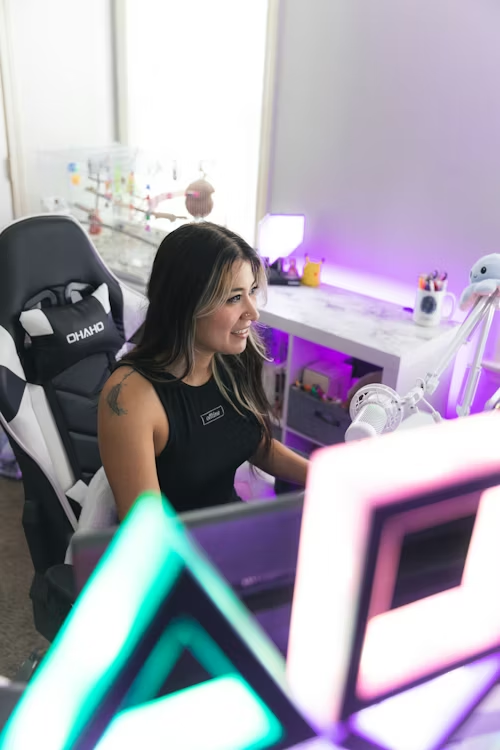
The Creator Dashboard
The PS5 features a built-in capture card capable of streaming in 1080p 60fps. While it doesn't offer the complexity of a PC-based OBS setup, it is the most efficient way to start your streaming career. On the **PS5 Pro**, the system leverages extra overhead to ensure that broadcasting while playing high-fidelity 2026 titles doesn't result in frame-rate drops for the player.
🎙️ Professional Stream Checklist
High-quality content requires consistent data delivery and clear peripherals:
- Network: Avoid jitter by using a Cat8 Ethernet Cable. Wireless signals often drop frames during high-action scenes.
- Lighting: The PS5 Camera struggles in low light. Use a USB-Powered Ring Light to eliminate graininess.
- Audio: Upgrade from the controller mic to a Studio-Grade USB Microphone for crystal-clear commentary.
- Green Screen: Use a Collapsible Background to utilize the PS5's built-in "Chroma Key" background removal.
Pro Creator Tip: Internal streaming relies heavily on your upload speed. For a jitter-free 1080p broadcast, we recommend a minimum upload speed of 10Mbps. Check your connection in Settings > Network before going live.
Step-by-Step Instructions
- Link Accounts: Go to Settings > Users and Accounts > Linked Services and sign in to Twitch or YouTube.
- Open Broadcast Menu: While in a game, press the Create Button and select the Broadcast icon.
- Configure Video: Select "Broadcast Options" to toggle your Camera and Chat Overlay. Ensure your resolution is set to 1920 x 1080 for the best quality.
- Audio Check: Go to Broadcast Options > Include Controller Audio if you want your party-chat friends to be heard on stream.
- Go Live: Enter your title and hit Go Live. Your light bar will pulse orange to indicate you are broadcasting.
⚠️ Tech Tip: The PS5's built-in chat overlay can block important game UI elements. For a cleaner look, many 2026 creators use a Second-Screen Tablet Mount to monitor chat externally.
Ready to take your production to the next level?
Built-in tools are great, but professional 2026 creators use external capture cards for high-bitrate 4K mastering.
View Professional Streaming Gear