Calibrating Analog Sticks & Deadzones
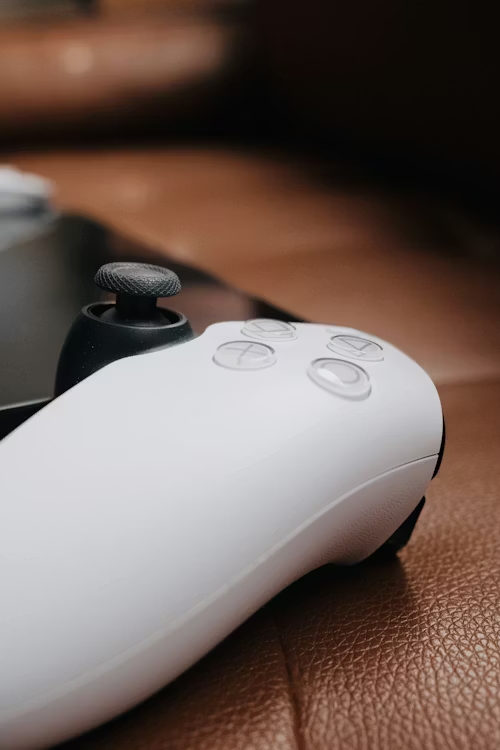
Combatting "Input Variance"
Even without hardware drift, every DualSense controller has a slight variance in its "Center" point. When adding high-rise thumbsticks, this variance is magnified. On the **PS5 Pro**, high-polling rate inputs make these tiny deviations more noticeable in competitive titles. Proper calibration ensures that your sticks respond to the slightest touch without drifting when idle.
🎯 The Precision Toolkit
Software tuning is more effective when the physical hardware is optimized:
- Mechanical Range: Increase leverage and accuracy with Performance Thumbsticks.
- Sensor Cleaning: Use 90% Isopropyl Alcohol & Swabs to clear debris from the internal housing.
- Control: Add Precision Rings to the stick base for physical resistance and over-travel prevention.
- Maintenance: Use Compressed Air to clear out dust without opening the shell.
Performance Tip: Software calibration can only do so much if your physical stick caps are worn down. For better grip and increased range of motion, see our Best Performance Thumbsticks guide.
Step-by-Step Instructions
- Physical Cleanse: Lightly soak a cotton swab in alcohol. Rotate the stick and clean the "ball" base to remove skin oils that cause friction.
- Access Calibration: On PS5, go to Settings > Accessibility > Controls > Adjust Controller Settings to view raw input data.
- Browser Calibration: For deep tuning, connect your controller to a PC via USB. Modern 2026 web-tools allow you to visualize your "Stick Center" and circularity errors in real-time.
- Deadzone Setting: If your stick has a 1-2% variance, go into your game's "Advanced Controls" and set your Inner Deadzone to 0.03 (3%) to negate the phantom movement.
- Hardware Reset: If software tuning fails, use a pin to hold the reset button on the back for 5 seconds to clear the onboard memory.
⚠️ Tech Tip: If cleaning the base doesn't work, you likely have debris inside the potentiometer. We recommend a Precision Repair Kit to safely open the controller and access the sensors.
Is your stick drift beyond a software fix?
Sometimes the internal springs or sensors are simply too worn for calibration to work.
Check Prices for New DualSense Controllers