How to Optimize Tempest 3D Audio
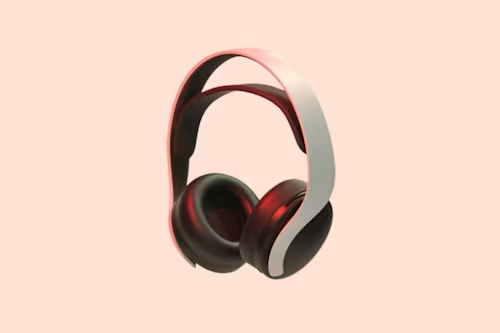
Expert Guidance
Sony's Tempest Engine is designed to simulate hundreds of individual sound sources, providing a massive competitive advantage in 2026 titles. However, because every ear shapes sound differently, the default profile often feels "flat." Using the calibration tool is essential for accurately tracking verticality and enemy footsteps on the **PS5 Pro**.
🎧 Spatial Audio Requirements
To hear 3D Audio as intended, your signal chain must maintain high fidelity:
- Connection: A low-latency wireless link or high-quality wired connection (See Verified 3D Headsets).
- Maintenance: Built-up earwax on headset mesh ruins spatial clarity. We recommend Precision Cleaning Swabs for monthly maintenance.
- Signal Integrity: Use Gold-Plated 3.5mm Extensions if your cable doesn't reach your seating position.
Step-by-Step Instructions
- Sound Menu: Go to Settings > Sound.
- Select Output: Choose 3D Audio (Headphones).
- Enable: Ensure Enable 3D Audio for Headphones is turned ON.
- Calibrate: Select Adjust 3D Audio Profile.
- Listen: Choose the profile (1-5) where the sound matches your ear level.
⚠️ Tech Tip: Plugging a high-end headset into the DualSense controller uses a low-power DAC that can "crush" the 3D soundstage. For the best 2026 spatial experience, use a USB Wireless Headset to bypass the controller's limitations.
Still can't pinpoint enemy locations?
Your headset's drivers may lack the frequency range needed for Tempest 3D virtualization.
Check Headset Compatibility & Prices