Managing "Cold Storage": Transferring PS5 Titles
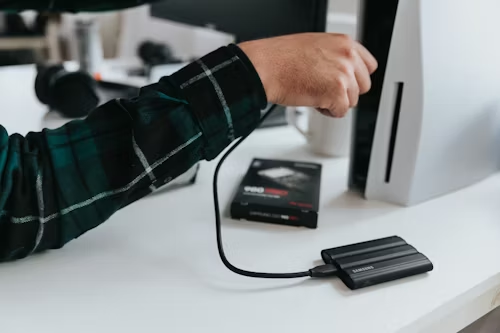
The Playability Restriction
You cannot play PS5-native games directly from a USB drive because the USB 3.2 interface is too slow for 2026 asset streaming. However, "Cold Storage" allows you to swap a 100GB game back and forth in minutes rather than re-downloading it. On the **PS5 Pro**, maintaining a high-speed external library is essential for managing the massive file sizes of PSSR-enhanced titles.
| Storage Type | Play PS5 Games? | Max Speed |
|---|---|---|
| Internal M.2 SSD | ✅ Yes | 7,500+ MB/s |
| External NVMe SSD | ❌ No (Cold Store Only) | 1,000 MB/s |
| External HDD | ❌ No (Cold Store Only) | 150 MB/s |
Speed Note: If your transfers are taking hours rather than minutes, your drive probably lacks a DRAM cache. For 10Gbps speeds that actually match the PS5's rear ports, see our Best SSD Enclosures guide.
Step-by-Step Instructions
- Rear Port Priority: Connect your drive to the **USB-A SuperSpeed (10Gbps)** ports on the back. The front port is limited to 480Mbps on some models and is not suitable for mass storage.
- Formatting: Go to Settings > Storage > USB Extended Storage and select Format as USB Extended Storage.
- Mass Move: Navigate to Console Storage > Games and Apps. Select Move PS5 Games and tick the titles you wish to archive.
- The "Auto-Install" Rule: Set Always Install PS4 Games to USB in the storage settings to reserve your internal SSD for high-performance 2026 titles.
⚠️ Tech Tip: The PS5 requires a minimum capacity of 250GB for extended storage. If you're using an older 128GB drive, the system will reject it. We recommend a 2TB NVMe External SSD for the best price-to-performance ratio in 2026.
Tired of moving games back and forth?
You can play PS5 games directly—with no loading screens—by installing a certified internal M.2 drive.
View Internal SSD Recommendations