How to Pair, Reset, and Update DualSense Controllers
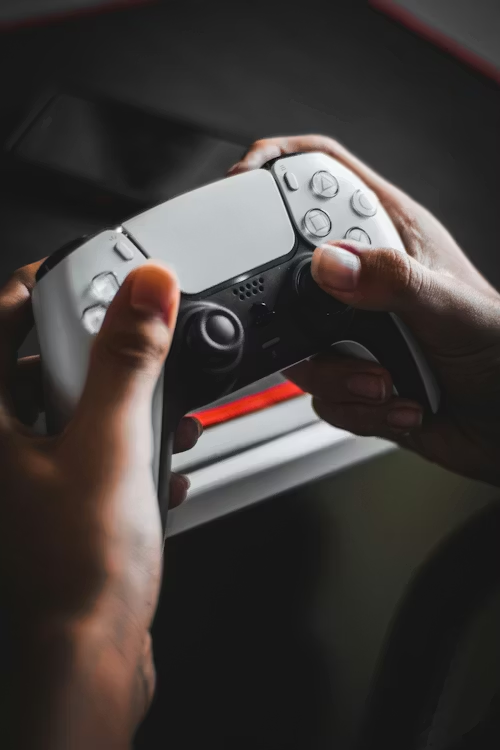
Expert Synchronization Logic
The DualSense controller utilizes a secure Bluetooth 5.1 protocol for wireless communication. While pairing is usually automatic, hardware desyncs can occur due to signal interference or firmware mismatches. On the **PS5 Pro**, maintaining updated firmware is critical for leveraging the improved wireless stability patches of 2026.
🎮 Sync & Power Essentials
Synchronization failures are often caused by low-quality power delivery or blocked signal paths:
- The Cable: Ensure you use a 10Gbps USB-C data cable.
- Avoid "Charge-Only": These cables lack the data pins for handshakes.
- Reliable Power: Prevent battery-related desyncs with a High-Speed Charging Dock.
- Reset Tools: Keep a SIM-Eject Tool or Precision Pin handy for emergency hardware resets.
- Cleaning: Use Electronic Contact Cleaner if the USB-C port fails to connect.
Step-by-Step Instructions
- Hardwired Handshake: For the initial sync, connect the controller to the front USB-C port of the PS5. Press the PS Button.
- Bluetooth Pairing Mode: Ensure the controller is off. Hold the Create Button and PS Button until the light bar double-flashes blue.
- Hardware Reset: Locate the small hole on the back of the controller. Use a pin to hold the internal button for 5 seconds to clear the pairing cache.
- Firmware Enforcement: Navigate to Settings > Accessories > Controller > Wireless Controller Device Software to install the latest 2026 patches.
Tired of plugging in cables every time you sync?
Charging docks provide a permanent "home" for your controllers while ensuring they are always at 100%.
Check Charging Station Prices⚠️ Pro Tip: If your controller flashes blue but won't connect, it is likely still "bonded" to a PC or Mobile device. Performing the Hardware Reset (Step 3) is mandatory to break that bond before the PS5 can recognize it again.